Aqara FP400 setup failed: “not level”, “Thread Border Router needed” – causes and fixes 2026
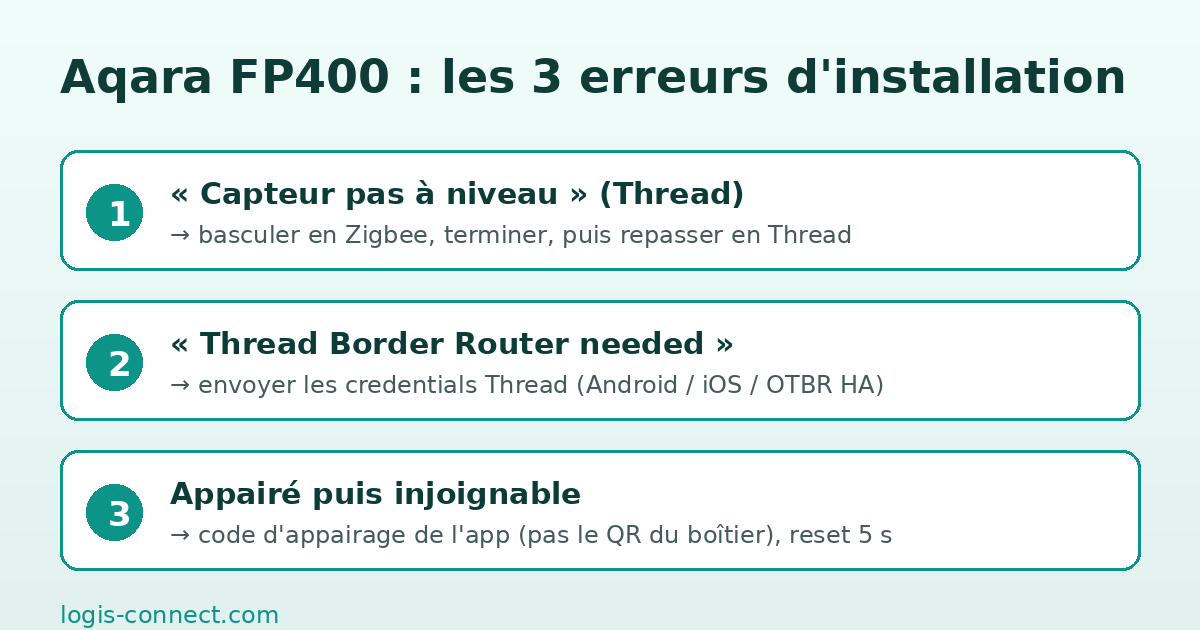
Is your FP400 refusing to set up? Three error messages explain almost every case reported since it launched on 16 September 2026: “the sensor is not level” in Thread mode (verified workaround: switch to Zigbee, finish setup, then go back to Thread), “Thread Border Router needed” even though your Thread network is alive (your phone does not know the network credentials), and the printed QR code scanned instead of the pairing code generated by the app (guaranteed failure).
Aqara’s FP400 presence sensor launched on 16 September 2026 at €79.99 in Germany. Five days later, Aqara’s own forum already had six threads open about setting it up, and no guide — not the manufacturer documentation, not the tech press — pulls the fixes together. That is the gap this article fills.
Straight about the method: we have not received an FP400 review unit yet. This guide is built on three sources checked on 22 September 2026: the six threads on Aqara’s official forum opened between 17 and 21 September, the two contradictory pages of Aqara’s own documentation (docs.aqara.com), and our own readings on a Home Assistant test bench (OTBR with a SONOFF dongle) for the Thread credentials part. Every fix is credited to its source, and what remains uncertain is flagged as such.
What actually happens when FP400 setup fails
The FP400 is a mmWave radar presence sensor that speaks both Thread and Zigbee, with eight configurable detection zones and recognition of up to ten people. Two things set it apart from the FP2 it complements: it mounts on the ceiling or wall with a magnetic bracket and runs on USB-C, and it is sold as the brand’s first model that can be fully configured without an Aqara hub — provided you already have a Thread network.
That “hub-free” promise is precisely where the three error messages come from. The Aqara Life app handles two clearly separate setup paths depending on the protocol and the network you pick, and it fails in three different ways depending on which prerequisite is missing.
| Message on screen | Real cause | Time to fix |
|---|---|---|
| “Sensor is not level” | The app refuses to continue calibration in Thread mode, whatever the sensor’s actual tilt | 5-10 min (via Zigbee) |
| “Thread Border Router needed” | The phone does not hold the credentials of the Thread network in use | 5-15 min |
| Found, then unreachable / pairing impossible | Wrong code scanned, hub M3 mid-update, or a leftover pairing entry in the app | 10-20 min |
Error 1 — “The sensor is not level” in Thread mode
This is the most quoted message on Aqara’s forum since launch. One user put it plainly on 20 September 2026: “it reported that it could not continue installation because the sensor was not level. It was clearly level.” The sensor was sitting on a perfectly flat surface and the app still refused to move on.
One detail matters: this error appears in none of Aqara’s documentation pages. It is not a documented requirement, it is app behaviour — which is why no tutorial helps you here. The tilt check does exist in the FP400 calibration procedure, but on the Thread path it seems to fire regardless of the device’s physical orientation.
The verified workaround: finish setup in Zigbee mode
The fix that shows up in two separate threads on the official forum takes one sentence, and it comes from a user who stumbled onto it: “Okay, I switched the mode to Zigbee and it all worked (don’t know why).” In practice: hold the sensor’s button to put it back into pairing mode, and in the Aqara Life app explicitly pick Zigbee rather than Thread when you choose the protocol.
Setup then runs all the way through, calibration included. Two honest caveats: the workaround is verified by users, not by an official fix — the root cause of the Thread tilt check is still unknown; and if you go Zigbee you need a compatible Aqara hub, because Zigbee traffic is not relayed by your Thread network.
Going back to Thread after a Zigbee setup
If the Zigbee route let you finish calibration, you can try returning to Thread — but not by simply switching the protocol in the app. You have to remove the device from the Aqara app completely, reset it with a long press (see the reset section below), then start a fresh setup choosing Thread. Early reports suggest the second pass works better once the sensor is already calibrated and the hub is up to date, though we cannot point to a documented mechanism that explains it.
Error 2 — “Thread Border Router needed” when your Thread network exists
The second message, which surfaced on 19 September 2026 on the official forum, is more confusing: the user runs a working Thread network with Home Assistant as Leader, and the Aqara app still demands a Thread Border Router. The network is almost never the problem. The phone is. To commission a Thread device, the smartphone needs the network key (the credentials) of the Thread network it is about to join. An OTBR that works fine for your other sensors is not enough if the phone itself has never learned that network.
On Android: sync credentials from the Home Assistant Companion app
- Open the Home Assistant Companion app on your Android phone.
- Go to Settings → Companion app → Troubleshooting.
- Tap Sync Thread credentials and let it finish.
- Go back to Aqara Life and restart adding the FP400 in Thread mode.
On Android this sync goes through Google Play services, which act as the default Thread controller. If your preferred Thread network is not the one registered in Google Play, the Aqara app will not see it — even though it works perfectly in Home Assistant.
On iOS: send credentials, then set the preferred network
- In iPhone Settings, open Devices and Services → Thread.
- Select your Thread network and tap Send credentials to Home Assistant.
- Then tap Make preferred network.
- Restart the FP400 setup in the Aqara Life app.
That second step is the one everybody skips. Sending credentials changes nothing if the network is not marked as preferred: the device gets commissioned into one Thread network while the phone offers another one at the next pairing. On our Home Assistant bench, this is the step that unblocked the most stalled pairings, whatever the sensor brand.
Home Assistant with a SONOFF dongle (OTBR): what really counts
If your Thread network runs on a SONOFF dongle or another radio dongle set up as an OTBR on Home Assistant, three checks are enough: the network is actually Leader (not “detached” or a child of another network), the IPv6 prefix is delegated and routed to the internet (otherwise pairing works but firmware updates never will — see below), and the phone used for pairing is the one that received credentials for that same network. A Thread device cannot be commissioned from a phone that only knows a different Thread network, even if both exist in your home.
⚠️ Check this before resetting anything: if your FP400 refused to set up with a “Thread Border Router needed” message, do not go looking for a hardware fault. Across the threads from 17 to 21 September, no sensor was declared faulty because of this message; every case cleared up once Thread credentials were synced on the phone.
Error 3 — The device is “found” then unreachable, or pairing never starts again
The third family of failures is the most baffling: the app does discover the sensor, pairing begins, then the device goes unreachable — including on the local network (a 17 September 2026 thread titled “can’t reach on LAN” gathered twenty messages). Three causes dominate.
The QR code printed on the device is not the right code
This is the most time-consuming mistake. Aqara’s documentation is explicit: for Matter pairing you must not scan the QR code printed on the product, but the pairing code generated by the app or shown on its screen. The code on the housing is a production identifier; used for Matter commissioning, it leads to a failure, sometimes after several minutes of searching. If the app offers you a code on screen, that is the one to use — even if it looks like the one on the box.
A hub M3 update mid-way breaks pairing
A thread opened on 21 September 2026 describes a very specific case: FP400 pairing worked, then stopped working after the Aqara hub M3 update. The mechanism is familiar: while a hub reboots or updates its Thread stack, it no longer acts as border router, and the pairing in progress fails silently. The rule: check in the app that the hub is up to date and fully rebooted, then pair the sensor — never the other way round.
The right reset sequence for the FP400
- Hold the button for 5 seconds on the sensor: standard reset, to use before retrying a pairing.
- Ten quick presses (or a very long press depending on the revision): full factory reset, for when the sensor is still visible in the app but cannot be controlled.
- After a reset, always delete the ghost device in the Aqara Life app before starting again: a leftover pairing entry makes the next attempt fail with a misleading message.
Do you really need an Aqara hub? The documentation contradicts itself
This is the question that leaves the most users stuck, because the official documentation does not answer it the same way on every page. One FP400 documentation page states that direct app-based setup, without an Aqara hub, is possible if an existing Thread network is available (“after Direct App-Based Network Setup (Requires Existing Thread Network)”). Another page states the opposite: “full functionality requires pairing with an Aqara hub and the Aqara Life app.” Both pages are live, both reachable from the same Aqara help centre.
The reading that holds up is this: the hub is not required to pair and operate the FP400, but it is required to unlock every function. The documentation wording is not a spec contradiction, it is a marketing shortcut — and that shortcut sends users out to buy a hub they do not need, or to give up on a setup that would have worked.
Compatible Aqara hubs (and the ones that are not)
| Aqara hub | FP400 compatible? | What you gain |
|---|---|---|
| Hub M3 | Yes | Thread and Zigbee, advanced zones, standalone firmware updates |
| Hub M100 / M200 | Yes | Full functionality, smaller footprint |
| Camera G410 / G5 Pro (built-in hub) | Yes | Full functionality through the camera |
| Hub M2 / M1S / E1 | No | Not supported for the FP400, despite the M2 having a Thread radio |
| No hub (third-party Thread network) | Yes, partially | Presence and illuminance sensor, without zones |
The confusion around the M2 and M1S comes from the fact that they do have a Thread radio — but Aqara does not list them as compatible with the FP400. Having the right radio is not enough: the hub firmware is what decides support for the newest Matter devices.
What you lose without a hub: direct Matter pairing, no zones
If you pair the FP400 directly over Matter (in Home Assistant or Apple Home, for instance), you get two entities only: a presence sensor and an illuminance sensor. The eight zones vanish. In other words, a sensor sold on fine-grained zone detection — telling a sofa from a hallway, a kitchen from a dining room — behaves as a plain whole-room presence detector until it goes through the Aqara ecosystem. This is worth knowing before buying if your automations rely on zones.
💡 Tip: configure the sensor in the Aqara Life app first (with a compatible hub or not, a third-party Thread network is accepted), create your zones, then export the device to your main ecosystem. Doing it the other way round — pairing directly over Matter — leaves you with a zone-less sensor whose only fix is a full re-pairing.
Configuring zones without an Aqara hub, then exporting to Matter
The official procedure exists, but it is buried in the documentation. The principle: the Aqara Life app can configure the FP400 on a third-party Thread network (yours, running on an OTBR in Home Assistant for example), with no Aqara hub. Once the zones are drawn in the app, the device is shared to Matter — zones stay visible in the Aqara app, and your main ecosystem inherits the presence and illuminance entities.
- Create or identify the Thread network the FP400 will join (your existing one, with credentials synced to the phone).
- In the Aqara Life app, start adding the FP400, choosing Thread and then the direct setup option requiring an existing Thread network.
- Once the device is visible, open its settings and draw your zones (up to eight), with their distances and sensitivity thresholds.
- Then enable Matter sharing from the app to expose the sensor to Home Assistant, Apple Home or Google Home.
That sequence gives the best result, but it is not without traps: if you start Matter sharing before finishing zone configuration, the exposed device will not carry them. Configure, verify, then share.
Forcing the FP400 firmware update
On a product launched five days before this article was written, the firmware question comes up fast: several setup blockers are fixed by updates published in the days after launch. Aqara’s documentation describes a counter-intuitive way to force the check: a double protocol switch. In practice, you move the device from Thread to Zigbee, then from Zigbee back to Thread — each switch makes the app query the update server.
If you are wondering why your sensor shows no new version, our guide to Matter and Thread firmware updates that never arrive walks through the four possible causes on the network and ecosystem side: unrouted IPv6, firmware missing from the DCL registry, parallel OTAs, or an ecosystem holding the fabric that cannot push the update. For a Thread device, a routable IPv6 is the most common cause of a silent failure.
What the first user reports are worth: range, zones, power
Beyond setup errors, early FP400 owners have posted dated hands-on reports, and they are mixed. A beta tester documented a long and positive run on 17 September 2026 with Thread, Matter and Home Assistant, reporting good stability and a calibration that holds over time. On the other side, a 18 September thread on r/Aqara (19 upvotes) judges real-world range below expectations: the sensor detects still presence well in the room it sits in, but covering a large open-plan space needs sensitivity adjustments.
Three differences from the FP2 are worth knowing before buying. The FP400 offers eight zones where the FP2 offers up to thirty: if you need fine-grained division of a large room, the older model fits better. It runs on USB-C 5 V / 1 A, with no battery, so a socket or cable has to be within reach of the mounting point — a detail that complicates ceiling placement in a hallway with no power. And its format, designed for ceiling or wall, makes it a more discreet sensor than a box sitting on a shelf.
Pros
- Thread and Zigbee in one housing: you pick your network
- Works without an Aqara hub if an existing Thread network is available
- Eight configurable zones, up to ten people detected
- Discreet format, magnetic mount, standard USB-C power
- Reasonable price (€79.99 in Germany at launch)
Cons
- Thread setup blocked by an undocumented tilt check
- Phone Thread credentials mandatory, or you get “Thread Border Router needed”
- No zones with direct Matter pairing (two entities only)
- No battery: a USB-C power source must be reachable
- Official documentation contradicts itself on whether a hub is required
FP400 setup: frequently asked questions
Does the FP400 work with Home Assistant without an Aqara hub?
Yes, as long as you have an existing Thread network and pair the device directly over Matter. You then get a presence sensor and an illuminance sensor in Home Assistant. The eight detection zones are not carried over in that mode: they can only be configured through the Aqara Life app.
Thread or Zigbee: which mode should I pick for the FP400?
Thread if your home is already equipped (Home Assistant with an OTBR, Apple Home with a HomePod, hub M3): it is the mode with the best network resilience and meshing. Zigbee if you own a compatible Aqara hub but have no Thread network — and it is also the workaround that unblocks setup when the app refuses to continue with the “sensor is not level” message.
Why does the app say the sensor is not level when it clearly is?
Nobody knows precisely, and that is what makes it confusing: the message appears in no Aqara documentation page, and no user has managed to clear it by changing the sensor’s orientation. The workaround verified twice on the official forum is to switch to Zigbee for the duration of setup, then return to Thread with a full reinstall.
Can I use the FP400 without the Aqara app?
Technically yes, if you already run a Thread network and pair it directly over Matter using the pairing code. You lose zone configuration, app-driven firmware updates and access to advanced settings (sensitivity, distances, zone exit delays). For plain presence detection that is a defensible choice; to use zonal detection the app stays essential.
Why do the zones not show up in Apple Home or Home Assistant?
Because the Matter specification exposed by the FP400 only carries two entities: presence and illuminance. Zones are a software layer specific to the Aqara ecosystem, not converted into multi-sensor Matter structures. If your automations depend on telling two areas of the same room apart, trigger them from the Aqara app or use a home automation system that reads Aqara events directly.
Does the FP400 require an iPhone?
No. Setup also works on Android, but Thread credential syncing follows two different paths depending on the OS: on Android through the Home Assistant Companion app (Settings → Companion app → Troubleshooting → Sync Thread credentials), on iOS through system settings (Devices and Services → Thread → Send credentials, then Make preferred network). That step, often skipped, is what triggers the “Thread Border Router needed” message.
Should I scan the QR code printed on the FP400 housing?
No, and this is a frequent source of failure. Aqara’s documentation explicitly asks you to use the pairing code generated by the app (or shown on screen), not the QR code printed on the product. The code on the housing is a production identifier: scanned during Matter commissioning, it leads to a failure, sometimes after several minutes of fruitless searching.
How do I fully reset the FP400?
Holding the sensor button for about five seconds triggers the standard reset, the one to use before retrying a pairing. For a full factory reset, the documentation specifies a sequence of ten quick presses. After every reset, delete the device still showing in the Aqara Life app: a leftover pairing entry prevents the new pairing and displays a misleading error.
Do hub M3 updates really break pairing?
A 21 September 2026 thread describes exactly that scenario: pairing succeeded, then failed repeatedly after the hub M3 update. The most plausible explanation is that a hub in the middle of an update or reboot stops acting as border router for the duration, which makes any simultaneous pairing attempt fail. The practical rule: update the hub first, wait for it to fully reboot, then pair the sensors.
How many rooms can one FP400 cover?
One. The FP400 is a per-room presence sensor, not a multi-room detector: it has to sit in the room being monitored, with USB-C power within reach. Its eight zones carve up the space inside that room — sofa, desk corner, walkway — not several rooms from a central point.
What to take away
FP400 setup almost always fails for one of three reasons: an undocumented tilt check in Thread mode (clearable by going through Zigbee), missing Thread credentials on the phone (the famous “Thread Border Router needed”), or the wrong pairing code scanned from the housing instead of the one generated by the app. None of the three is a hardware fault, and none justifies a return — which does not remove the main caveat: Aqara’s documentation contradicts itself about whether a hub is required, and direct Matter pairing costs you the zones.
If your problem is broader and the sensor no longer connects at all after setup, our guide to Matter device connection problems walks the diagnosis in order, from the Thread network to credentials. To choose a sensor before buying — PIR versus mmWave, range, Matter compatibility — our comparison of the best smart motion sensors and presence detectors details the criteria and the models we tested.
About the author: Alex Mercer, tech and smart home writer at Logis-Connect. Since 2020, Alex has installed and tested dozens of connected products every year (Matter, Thread, Zigbee, Z-Wave) in a real home, with documented protocols and published measurements. See his other guides.
Last updated: 22 September 2026 — sources: official Aqara documentation (docs.aqara.com), forum.aqara.com threads from 17 to 21 September 2026, Home Assistant Thread documentation, OTBR test bench.
* Disclosure: some links in this article are affiliate links. If you buy through them, we may earn a commission at no extra cost to you. Our tests and rankings stay independent and are never influenced by partners.