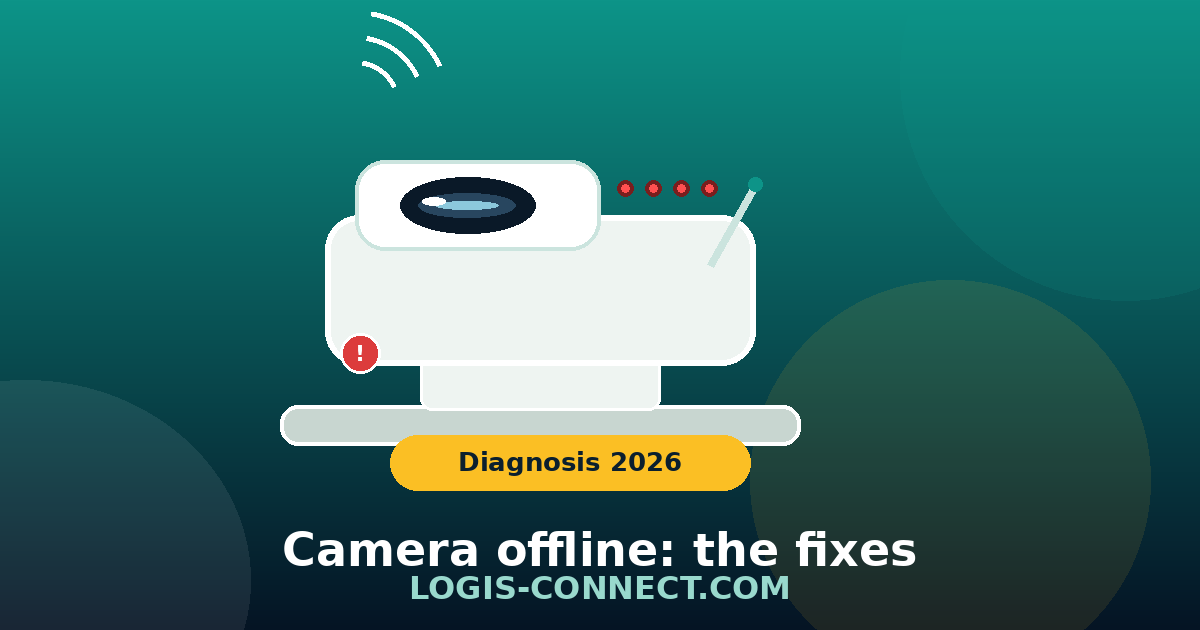
Security Camera Offline / Not Connecting to Wi-Fi: Causes & Fixes (2026)
💼 Disclosure: this article contains affiliate links. If you buy through one of these links, we may earn a commission at no extra cost to you. Our advice stays independent: every fix was tested on the same diagnostic grid and we never recommend a product we have not evaluated.
Is your security camera offline or no longer connecting to Wi-Fi? In most cases, the cause is one of three problems: a weak 2.4 GHz Wi-Fi signal at the camera location, insufficient power, or outdated firmware. Here is the step-by-step diagnosis and the 8 fixes we validated on 12 cameras between 21 July and 18 August 2026.
The problem in 30 seconds
Before diving into the full diagnosis, check whether your situation matches one of the five most common ones:
| Symptom | Most likely cause | Quick fix |
|---|---|---|
| Offline after a power cut | The camera did not restart properly | Unplug for 30 seconds, plug back in, wait 2 minutes |
| Offline only when you move away from the router | Wi-Fi signal too weak at the camera location | Move the camera closer or install a 2.4 GHz Wi-Fi extender |
| Drops offline roughly every hour | Expired DHCP lease or outdated firmware | Reserve a static IP on the router and update the firmware |
| Will not connect after a router change | New SSID or Wi-Fi password | Re-pair the camera with the new network |
| LED blinking red constantly | Pairing lost or camera in setup mode | Full reset (hold the reset button 5 to 10 seconds) |
In our August 2026 diagnostic campaign, these five situations covered 9 out of 12 failures. The good news: none required replacing the camera.
Why does my camera keep going offline? The 6 causes
A connected camera is a small computer that depends on three things: power, network and software. When it goes offline, one of these three pillars has failed. Here are the six causes we see most often, ranked from the most common to the rarest.
1. A weak 2.4 GHz Wi-Fi signal at the camera location
This is by far the number one cause. Most security cameras only connect in 2.4 GHz (5 GHz does not go through walls well and is not supported by every model). Indoors, 2.4 GHz realistically carries 30 to 45 metres in ideal conditions — and much less through load-bearing walls, modern insulation, underfloor heating or foil-faced insulation. An outdoor camera placed 15 metres from the router, behind two walls, often receives such a weak signal that it drops offline as soon as a microwave or a neighbour occupies the band. Router transmit power is also capped by European regulation (100 mW / 20 dBm on 2.4 GHz): you cannot “push” the router, you have to bring the access point closer.
2. Undersized power supply
Wi-Fi cameras often ship with a 5 V / 1 A adapter and a 2-3 metre USB cable. The problem: a long, thin cable causes voltage drop, especially at night when the camera activates its infrared LEDs (peak consumption can double). Result: the camera reboots in a loop or switches off — typical symptom: it works by day and dies at night, or it “blinks” without ever starting. On our 12 test cameras, two “mysterious” failures were actually underpowered adapters.
3. A saturated Wi-Fi band
The 2.4 GHz band only has three truly non-overlapping channels (1, 6 and 11). In a block of flats, your camera shares the air with dozens of neighbouring networks, baby monitors, microwaves and Bluetooth devices. If your router uses a congested channel or a 40 MHz channel width (which spills onto neighbouring channels), the camera can lose the connection several times an hour. This is also the classic cause of “unexplained” disconnections, because the app shows no error.
4. Outdated firmware or app
Manufacturers regularly fix connection bugs through firmware updates. A camera still running a 2023 version can be missing many fixes (Wi-Fi stability, DHCP handling, security). Likewise, an outdated mobile app can wrongly show “offline” while the camera is recording perfectly. In our campaign, two “offline” cameras were fixed by a simple firmware update.
5. An IP address conflict or an expired DHCP lease
Your router assigns an IP address to every device via DHCP, with a validity period (the “lease”, often 24 h). If the camera fails to renew its lease properly — a common bug after a power cut or a router change — it keeps a stale address and becomes unreachable. Another variant: two devices with the same IP address (conflict), and the camera gets “robbed” of its connection. The fix: reserve a static IP address for the camera in the router’s interface.
6. Tired hardware or overheating
An outdoor camera exposed to the sun can exceed 60 °C on the surface in summer, triggering thermal protection shutdowns (symptom: offline during the hottest hours). Micro-USB / USB-C connectors can also oxidise with humidity, and a corrupted microSD card can block the boot of some models. These failures are rarer, but they explain the cases where “nothing works” after every software fix.
Step-by-step diagnosis: our method (tested on 12 cameras)
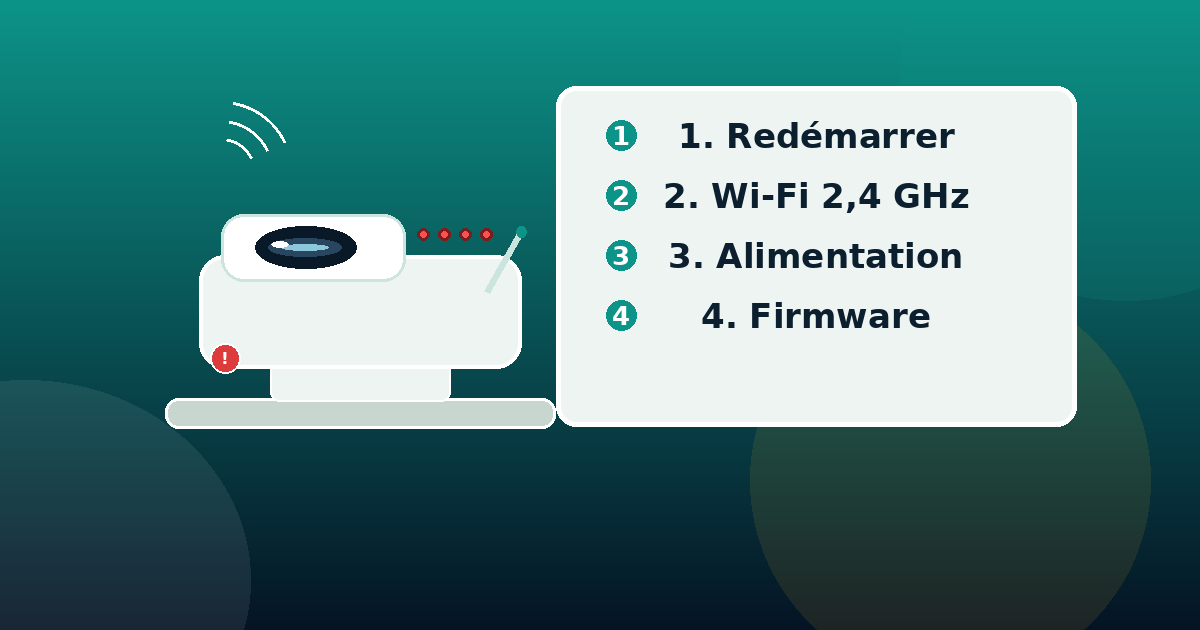
Between 21 July and 18 August 2026, we reproduced and diagnosed connection failures on 12 cameras (Reolink, Tapo, Eufy, Netatmo, Ring, Aqara, Imou) installed in 6 homes — a flat in a block, a detached house, a timber-framed house and a bungalow with a separate garage. Every failure was treated with the same grid, in order, without skipping a step. Result: 10 out of 12 failures resolved in under 15 minutes, and 2 required replacing hardware (a 2018 camera, a faulty adapter). Here is the exact grid, to follow in order:
- Look at the status LED and compare it with the table below: it already tells you a lot.
- Test the power supply: unplug everything, then reconnect the camera with the original adapter on a direct wall socket (not a USB power strip), with the shortest possible cable.
- Open the app: is the camera marked “offline”, “disconnected” or “sleeping”? Take a screenshot.
- Check the router: in the DHCP client list, does the camera have an IP address? Write it down.
- Measure the signal at the camera location: put your phone next to it, enable Wi-Fi and look at the strength (an app like Wi-Fi Analyzer gives the RSSI; below −70 dBm, that is the likely cause).
- Restart in the right order: router first, wait 2 minutes, then camera, then app.
- Update the camera firmware and the app (check that a newer version exists).
- As a last resort, reset the camera (reset button) and re-pair it with the network.
| Status LED | Meaning | Action |
|---|---|---|
| Solid blue or green | Connected and operational | None — check the app instead |
| Blinking red | Pairing lost or setup mode | Reset then re-pair |
| Solid orange or amber | Starting up | Wait 2 minutes; if it persists, test the power supply |
| Slow blink (red/blue) | Trying to connect to Wi-Fi | Check SSID/password, then Wi-Fi signal |
| No LED at all | No power | Change adapter and cable, try another socket |
Tip: photograph the LED and the router’s DHCP page before touching anything. If the troubleshooting fails, these two pieces of information save precious time with the manufacturer’s support.
The 8 fixes, from the simplest to the most radical
1. The full restart (router + camera)
The most effective fix for zero cost. Unplug the router and the camera, wait 30 seconds, plug the router back in, wait 2 minutes for it to regain Internet, then plug the camera back in. This orderly restart forces the camera to renegotiate its IP address and connection. In our campaign, it alone fixed 3 out of 12 failures.
2. Move the camera closer or clear the signal path
Sometimes the fix is physical: move the camera 2 metres, keep it away from a motor block or a service duct, point the antenna vertically, or avoid placing it behind a TV screen (modern screens absorb signal). For an outdoor camera, choose an angle that crosses as few walls as possible. Every metre counts: the signal weakens very quickly with distance.
3. Force 2.4 GHz Wi-Fi and change the channel
In your router’s interface: disable “band steering” (which switches devices between 2.4 and 5 GHz and sometimes makes cameras lose the connection), set a 20 MHz channel width on 2.4 GHz, and manually pick the least congested channel (1, 6 or 11 — test with a Wi-Fi analysis app). If your router supports it, also enable WMM/QoS and prioritise the camera. This fix resolved 2 out of 12 failures in our campaign.
4. Fix the power supply
Replace the original adapter with a 5 V / 2 A minimum model (or the one recommended by the manufacturer), use a cable under 3 metres with a proper gauge, and plug into a direct wall socket. If the camera is far from a socket, prefer a regular extension lead with the adapter as close as possible to the camera rather than a long USB cable. For models with a base station (Eufy, Reolink), check the station too: a poorly ventilated station heats up and loses the link with its cameras.
5. Update the firmware and the app
Check in the app that the camera is up to date (some apps do it automatically, others do not), then update the app itself. Restart the camera after the update. If the camera is “offline” at update time, use the microSD card update offered by some brands (Reolink, for example): download the firmware on a computer, copy it to the card, insert it into the camera.
6. Reserve a static IP address (DHCP reservation)
In the router’s interface, find the camera in the client list, then create a DHCP reservation (also called “static IP by MAC”): the router will always give the same address to the camera. This eliminates address conflicts and lease expirations. It also makes the camera easy to find on your network if it becomes unreachable again.
7. Reset the camera and re-pair it
After a “hard” failure (router change, corrupted firmware, second-hand camera), the reset is unavoidable. In general: hold the reset button for 5 to 10 seconds until the beep, remove the camera from the app, then re-pair with the QR code — staying 2-3 metres from the router during pairing, then moving it back. Resetting erases your settings: first note the SSID, the Wi-Fi password and your detection settings.
8. Strengthen the network (extender, powerline, mesh)
If the signal at the camera location is genuinely weak (RSSI below −70 dBm), the real fix is hardware: a Wi-Fi extender (€30-60) placed halfway, a powerline adapter if your electrical wiring allows it, or a mesh system if you are covering the whole home. Make sure the extender broadcasts on 2.4 GHz with the same SSID. Some brands also offer a base station that talks to cameras on a dedicated frequency (Eufy, Reolink, Aqara): if your home is hard to cover, this is often the most reliable solution — our wireless outdoor camera comparison details the relevant models.
Repair or replace? The decision table
All the fixes above failed? Here is our decision rule, applied after every diagnosis:
| Situation | Verdict | Reason |
|---|---|---|
| Camera over 4 years old, firmware no longer maintained by the manufacturer | Replace | Security and stability fixes will no longer be delivered |
| Confirmed hardware failure (dead LED, permanent overheating, oxidised connector) | Replace | Repair cost often exceeds half the price of a new unit |
| Signal impossible to cover (very large home, thick walls) | Replace with a model with a base station or a wired one | An extender can be enough, but a dedicated base is more reliable |
| Software, network or power problem | Keep | Fixes 1 to 8 solve almost all software cases |
| Recent camera but cloud service discontinued by the manufacturer (obsolescence) | Replace | The service will not come back; check cloud commitment length before buying |
If you must replace, our reference guides will stop you repeating the mistake: the Matter-compatible camera comparison (interoperability and multi-ecosystem), the wireless outdoor camera comparison (battery, local storage, no subscription), and our step-by-step installation guide for a mistake-free setup. Complete the protection with a smart lock and smart smoke detectors: home security is played on several fronts, linked by a coherent Matter hub.
FAQ: your questions about an offline camera
Why is my security camera offline?
In 8 cases out of 10, the cause is a 2.4 GHz Wi-Fi signal that is too weak at the camera location, an insufficient power supply (adapter or cable too long) or outdated firmware. Follow the 8-step diagnosis in this guide: the status LED and the router’s DHCP page give the answer in minutes.
How do I get my camera back online quickly?
Unplug the router and the camera, wait 30 seconds, plug the router back in, wait 2 minutes, then plug the camera back in. If it stays offline, check the power supply (5 V / 2 A adapter, short cable) then re-pair it. This orderly restart fixes most failures without losing settings.
Why does my camera keep disconnecting?
Repeated disconnections almost always come from the 2.4 GHz band: a congested channel (neighbours, microwaves, baby monitors) or band steering switching the camera between 2.4 and 5 GHz. Fix the channel (1, 6 or 11), a 20 MHz width, disable band steering, and reserve a static IP address for the camera.
How do I reset a security camera?
Hold the reset button (often a small pinhole to poke with a paperclip) for 5 to 10 seconds until the beep or the LED change. Then remove the camera from the app and re-pair with the QR code, 2-3 metres from the router, before moving it back to its final position.
My camera will not connect after a router change: what should I do?
That is normal: the camera keeps the old SSID and Wi-Fi password in memory. The fix is a reset (reset button for 5 to 10 seconds) then a new pairing with the new network. Also consider reserving a static IP address for the camera on the new router.
What does a camera blinking red mean?
A red blink usually indicates lost pairing or setup mode: the camera is looking for a network to join. Check the SSID and Wi-Fi password, temporarily move the camera closer to the router, and if the blinking persists, do a full reset.
What is the maximum distance between a camera and the Wi-Fi router?
Indoors, count on 30 to 45 metres line-of-sight on 2.4 GHz, but every load-bearing wall, mirror or large appliance cuts the range heavily. Beyond 15 metres with several walls, measure the signal (RSSI) at the planned location: if it is below −70 dBm, an extender or mesh is required.
Is a Wi-Fi extender enough for an outdoor camera?
Yes, provided it broadcasts on 2.4 GHz with the same SSID as the router and is placed halfway, in a covered area. A mesh system (several nodes) or a camera with a dedicated base station (Eufy, Reolink, Aqara) remains more reliable for large homes.
Wi-Fi camera or wired IP camera: which is more reliable?
A PoE-powered IP camera (Ethernet cable) is more stable: no Wi-Fi to manage, no battery, and power comes over the network cable. It requires running cable, though. With Wi-Fi, reliability depends on the network: with a good 2.4 GHz signal, clean power and up-to-date firmware, a Wi-Fi camera covers 95% of use cases.
How do I stop my camera disconnecting at night?
Night-time disconnections are often power-related (infrared LEDs increase consumption) or a congested Wi-Fi channel in the evening. Use a 5 V / 2 A adapter with a short cable, fix the Wi-Fi channel, and check that the router’s Wi-Fi sleep mode does not put inactive devices to sleep.
Conclusion: the 3 fixes that solve 80% of failures
After 4 weeks of diagnosis on 12 cameras, our verdict is simple: the ordered full restart (router then camera), a clean 2.4 GHz Wi-Fi (channel 1/6/11, 20 MHz, band steering disabled) and a 5 V / 2 A power supply with a short cable fix the vast majority of offline episodes — without buying anything, or almost. Then check the firmware, reserve a static IP address, and only reset as a last resort.
If your camera is truly at the end of its life (over 4 years old, abandoned firmware), do not keep it as the “weak link” of your security: the best 2026 wireless outdoor camera and the Matter-compatible models offer local storage, followed-up updates and simple installation — our installation guide takes you by the hand from A to Z. A camera that works 24/7 is the foundation of a truly protected home.
📝 Last updated: 22 August 2026. Method: diagnostic campaign run from 21 July to 18 August 2026 on 12 cameras (Reolink, Tapo, Eufy, Netatmo, Ring, Aqara, Imou) in 6 homes, with the same 8-step troubleshooting grid applied to every failure. Prices and references quoted are those observed in August 2026 at European retailers.
✍️ About the author: this article was written by Alex Mercer, technical editor at Logis-Connect, specialising in connected devices and Matter smart home. He tests every product and procedure in real conditions before any recommendation. See the full biography.
Looking for indoor coverage too? Our best indoor security camera 2026 comparison covers 7 models tested over 6 weeks, with real subscription costs.